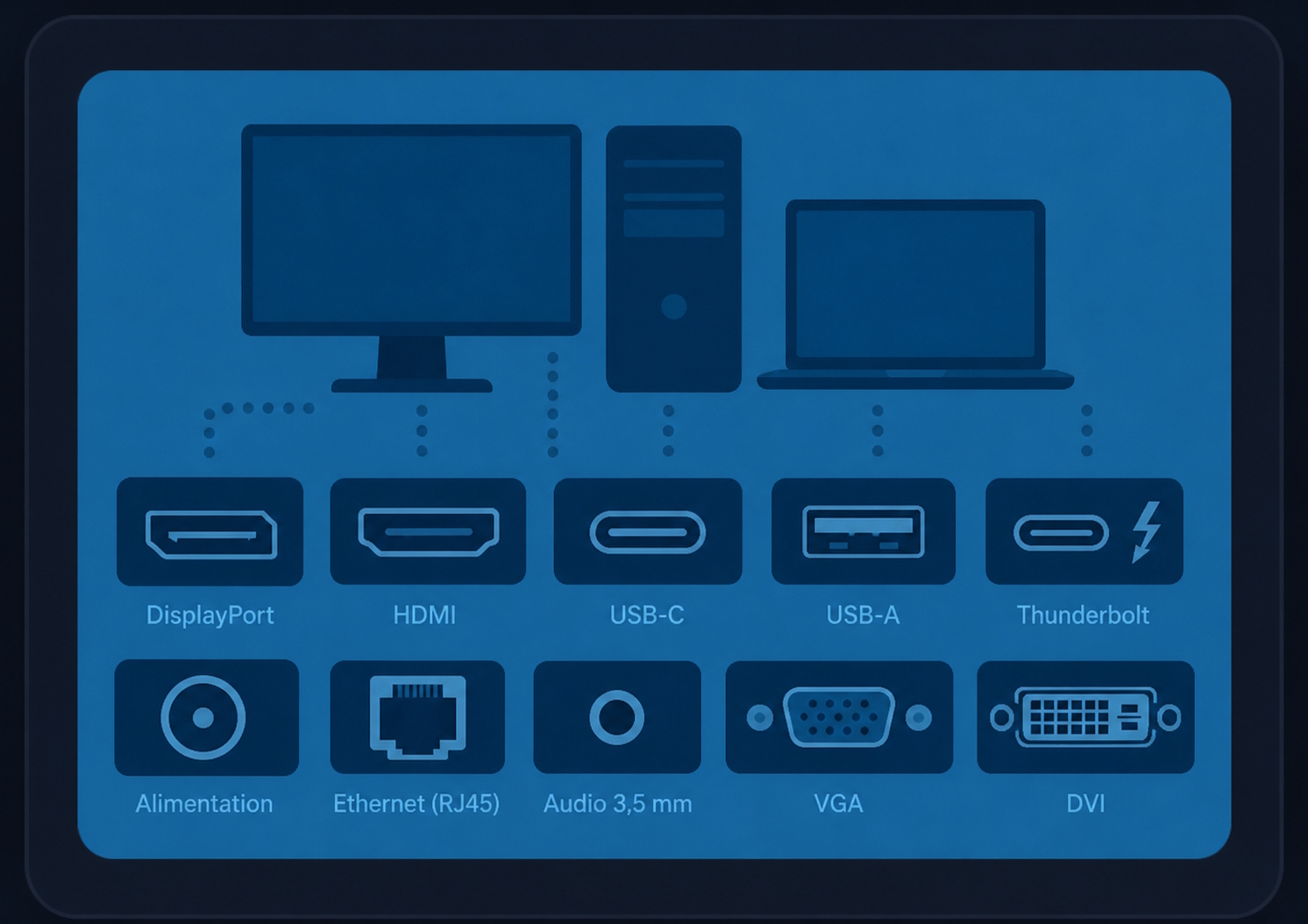
Computer Ports and Cables: A Simple Guide to Never Get Lost Again
We’ve all been there: a cable in hand, staring at the back of the computer, unsure where it goes — or whether it goes anywhere at all.
Between ports that look alike, those with several names, and those quietly disappearing, it’s easy to get lost. The good news: once you know the main families, everything becomes much simpler.
Here’s a clear, jargon-free guide to recognizing the most common ports and cables, and knowing what each one is for.
Video ports: connecting a screen#
These receive the cable that links your computer to a monitor or projector.
- HDMI — the most common. A thin, wide, slightly trapezoidal connector. It carries both image and sound in a single cable: it’s the standard for modern TVs, monitors, and projectors.
- DisplayPort — similar to HDMI in appearance, but with one cut corner. Common on desktop computers and office monitors. Excellent quality, ideal for high-refresh-rate screens.
- USB-C (video) — the same small oval port you use for accessories (see below) can also carry video. This is increasingly common on recent laptops: one cable for the screen, sometimes even charging the laptop at the same time.
- DVI — a wide, usually light-colored port (white or cream), recognizable by its dense grid of small pins and its two retaining screws. It’s the link between VGA and HDMI: it carries digital video but no sound. Still seen on older desktops and office monitors.
- VGA — the old blue port with 15 pins (and two small screws on each side). Still found on older monitors and projectors. It carries image only, no sound, and is on its way out.
USB ports: connecting your accessories#
The most-used family in daily life: USB stick, mouse, keyboard, printer, external hard drive, phone charger…
- USB-A — the classic flat, rectangular port. The one on most USB sticks. One annoying detail: it only plugs in one way (and rarely the right one on the first try!).
- USB-C — the small oval, reversible port: it plugs in either way, putting an end to the classic “flip it three times” routine. It’s becoming the universal format: phones, laptops, recent accessories.
- Micro-USB — a small trapezoidal port, long used for phones and small devices. Gradually being replaced by USB-C.
Good to know: not all USB-C ports are equal. Depending on the computer, the same port may handle charging, data transfer and a display… or only some of those. When in doubt, a small icon next to the port often gives a clue (a lightning bolt for charging, a screen symbol for video).
Networking: getting online#
- RJ45 (Ethernet) — the wired network port. It looks like a large phone jack, with a small plastic clip that “clicks” when plugged in. This is the most stable and fastest connection, ideal for a stationary workstation.
- Wi-Fi — not a port, but the wireless alternative to RJ45. Convenient and mobile, though a bit more sensitive to interference and distance.
The classic trap: a phone plug (RJ11) is narrower and will slide into the RJ45 network port… but it won’t work. If your cable looks “a bit small” in the socket and wobbles slightly, it isn’t a network cable. A real Ethernet cable fills the full width of the port and clicks firmly into place.
In practice: for a computer that stays put (accounting, important video calls), an RJ45 cable remains the most reliable choice.
Audio: the classic jack#
- 3.5 mm jack — the small round port for wired headphones and earbuds. Usually marked with a headphone icon beside it.
It’s slowly disappearing from the thinnest laptops in favor of Bluetooth (wireless) or USB-C. If your headphones have a small round plug but your laptop no longer has the matching port, a small USB-C adapter solves the problem.
The others, worth knowing#
- SD card reader — a thin slot for camera memory cards. The large card is an SD, the tiny one a microSD.
- Thunderbolt — it uses the same connector as USB-C, but is far faster and more versatile. Recognizable by the small lightning-bolt symbol next to the port.
- Power connector — on many recent laptops, charging now goes through a USB-C port rather than a dedicated round plug.
Recognizing a port at a glance#
| Preview | Port | What it’s for | How to spot it |
|---|---|---|---|
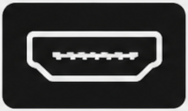 | HDMI | Screen / TV (image + sound) | Wide, thin, slightly trapezoidal plug |
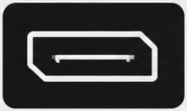 | DisplayPort | Desktop monitor | Like HDMI, but with one cut corner |
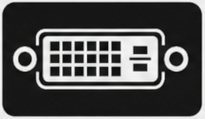 | DVI | Screen (older) | Wide, light-colored, dense pins, two screws |
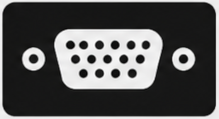 | VGA | Screen (older) | Blue 15-pin trapezoid, two screws |
 | USB-C | Accessories, screen, charging | Small oval port, plugs in either way |
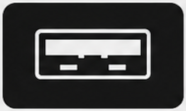 | USB-A | USB stick, mouse, keyboard | Flat rectangle, one way only |
 | Thunderbolt | Ultra-fast, screen, charging | Like USB-C, with a small lightning bolt |
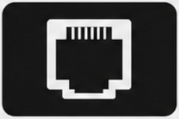 | Ethernet (RJ45) | Wired internet | Large “phone” jack with a clip that clicks |
 | 3.5 mm audio | Headphones / earbuds | Small round hole, headphone icon |
 | Power | Laptop charging | Round port with a center pin |
The trick that makes it easy#
Before buying a cable or adapter, the best method is simple: take a photo of your computer’s ports and compare it to this guide (or show it to your technician). It saves plenty of back-and-forth trips and cables that end up forgotten in a drawer.
In summary#
- Video ports (HDMI, DisplayPort, USB-C) connect a screen.
- USB ports (A and C) handle everyday accessories; USB-C plugs in either way.
- RJ45 gives you the most stable wired internet; Wi-Fi is its wireless version.
- The jack is still the headphone port, even as it slowly fades away.
Once these families are clear in your mind, there’s no more guessing — you’ll spot the right port at a glance.
Unsure about a connection, a screen that won’t display, or which adapter to pick?
At Solution IT, we help individuals and businesses in Nouméa keep things running smoothly, hassle-free. Feel free to get in touch.