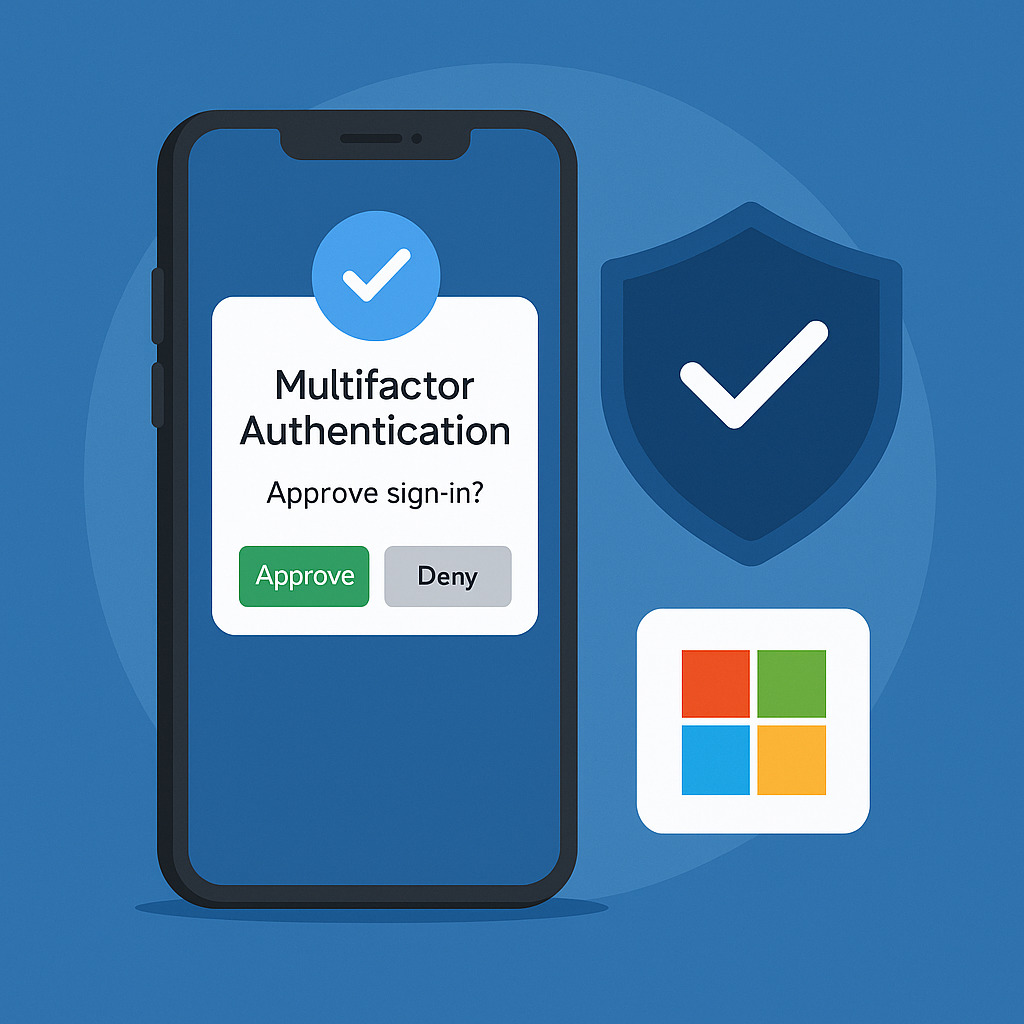
Multi-Factor Authentication: Secure Your Accounts in One Click
A password alone is no longer enough.
With the rise of data breaches and phishing attacks, it has become far too easy for cybercriminals to steal your credentials.
The good news? A simple measure can reduce the risk of compromise by more than 90%: Multi-Factor Authentication (MFA).
What is MFA?#
MFA adds a second verification step on top of the password.
Common examples include:
- Code sent by SMS
- Push notification on your smartphone
- Authentication app (Microsoft Authenticator, Google Authenticator, Authy, etc.)
- Physical security key (YubiKey, etc.)
Why is it essential?#
- A stolen or guessed password is no longer enough to access your accounts.
- MFA blocks the majority of attacks, even if your credentials are leaked on the dark web.
- It reassures your partners and clients: your data is better protected.
How to enable MFA with Microsoft Authenticator?#
Here is the recommended procedure for Microsoft 365:
Install the Microsoft Authenticator app
- Download the app on your smartphone (iOS or Android).
Log in to your Microsoft 365 account
- Go to https://mysignins.microsoft.com/security-info
- Click Add method → Authenticator app.
Link your account to the app
- Open Microsoft Authenticator on your smartphone.
- Select Add account → Work or school account.
- Scan the QR code displayed on the screen.
Test the login
- The next time you log in to Outlook, Teams, or SharePoint, you will receive a notification in the app.
- Approve the request → You’re signed in!
In summary#
Multi-Factor Authentication is a simple, quick-to-implement protection, and it has become essential for any business.
With tools like Microsoft Authenticator, your teams can secure their access with a single click, without added complexity.
👉 Need help enabling MFA in your company?
We can assist with deployment and user training.